Analyze a requirements statement (Document View)
When Jama Intelligence is enabled and configured by an organization admin, you can use it to analyze the quality of the text of a requirement text against industry-standard rules.
Important considerations
Jama Intelligence behavior aligns with the fundamental INCOSE approach that requirements are authored using a single sentence structure.
Jama Intelligence only analyzes the first sentence of a requirements statement.
To analyze a requirements statement in Document View:
From the Jama Connect header, select PROJECTS > Project.
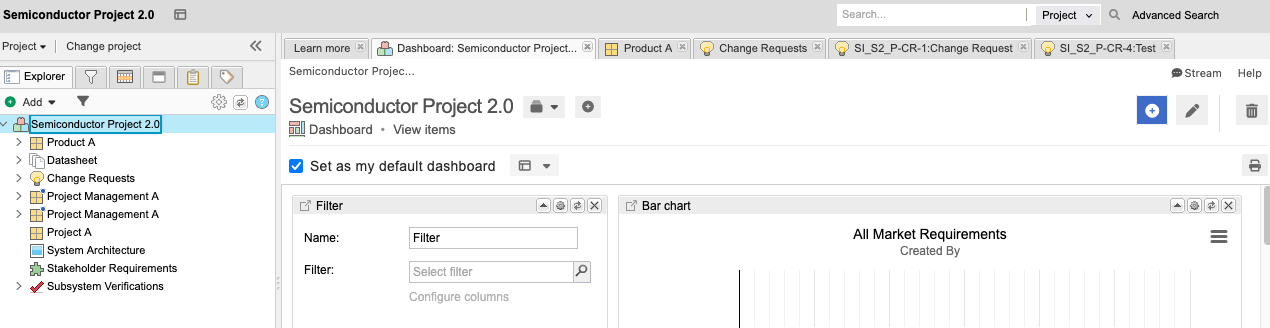
In the Explorer Tree, select the component or folder with the requirement you want to analyze.
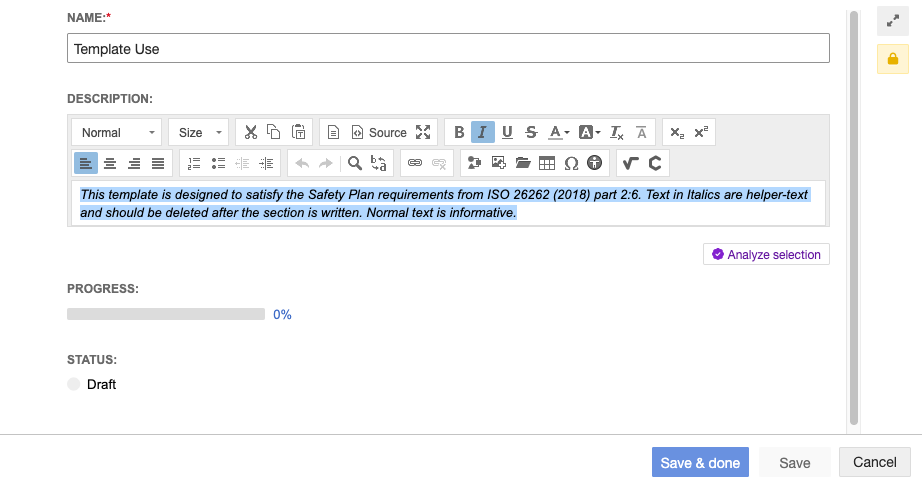
In Document View, select the item you want to analyze to open quick edit mode, with the option to expand to full edit mode, then select Analyze selection.
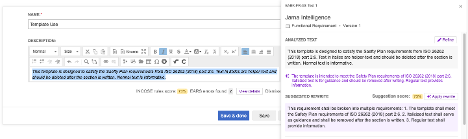
The initial assessment includes a quality rating and a quick analysis summary.
Select View details, read the analysis report, then select X to close the panel.
Implement the recommended changes:
Select Dismiss.
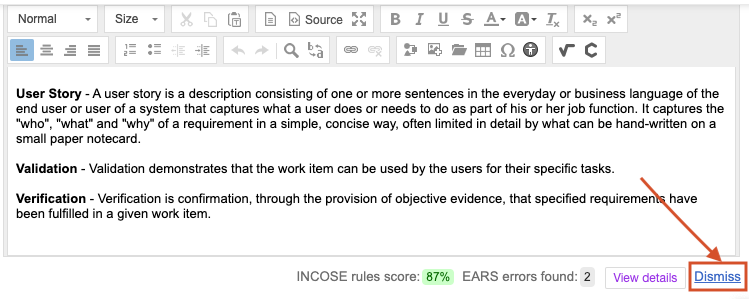
Edit the text, following the recommendations.
Rerun it on the same text, then read the results.
Select Save & done.
The screen is refreshed, and your changes are refreshed.
After analyzing your requirements, refresh Document View , then select Display scores.
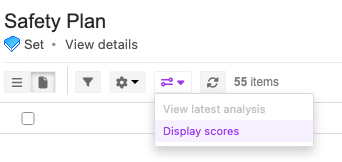
The analysis score is displayed.
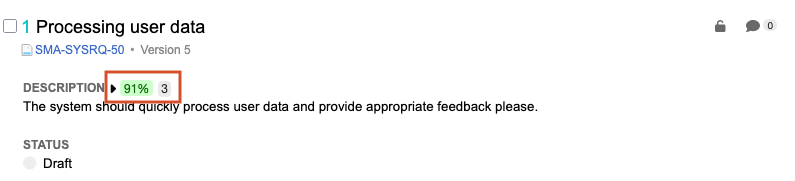
Select the score to expand the view of the Initial Score and Latest Score, if available.
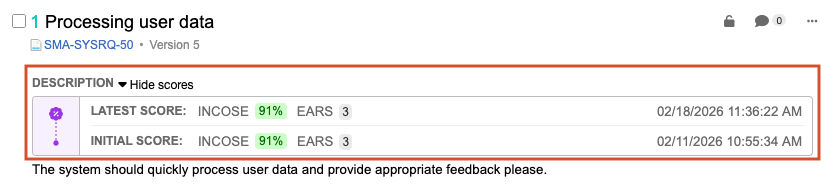
The scores are saved when you:
Analyze a single-statement when the Item is first analyzed and Save & done is selected.
Analyze with batch analysis when each score is loaded in the slide-over panel.
Analyze with batch analysis when the report is exported from the slide-over panel.