Enable Quality Analysis
Before users can run analysis on a requirements statement, the organization admin must configure item types, then enable Quality Analysis.
Organization Admins only
You need organization admin permissions for this task.
Important
You must configure an item type before enabling Quality Analysis, or it won't work.
To enable Quality Analysis:
From the Jama Connect header, select ADMIN > Organization > Item Types.
Select System Requirements, select a row that includes Rich Text, then select the pencil icon to edit it.
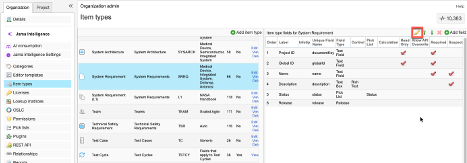
In the Edit field window, complete the fields and select options as needed, then select Quality Analysis and select Save.
From the Jama Connect header, select ADMIN > Organization > Quality Analysis.
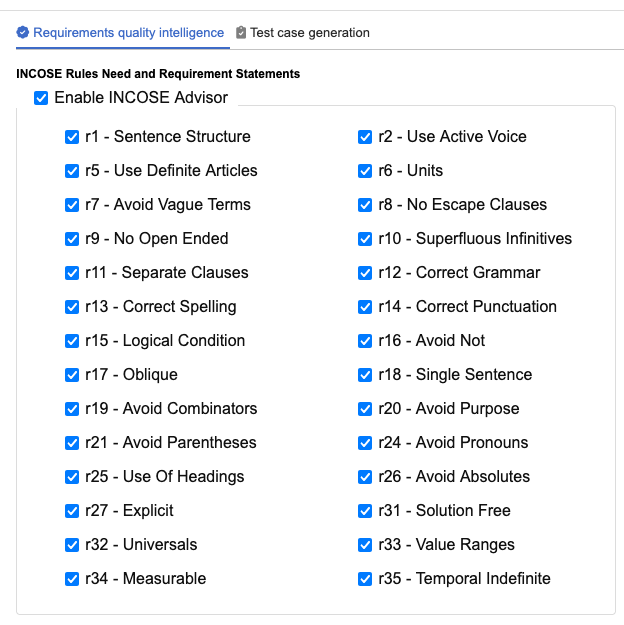
Under INCOSE Rules Need and Requirements Statements, select Enable INCOSE Advisor. By default, all rules are selected. You can leave all selected or deselect only the ones you don't need.
Under EARS settings, select Enable EARS Advisor.
Select Save settings.
Quality Analysis is now visible in the application. Once item types are configured, it is ready for users.
To learn about INCOSE rules and EARS notation see incose.org and alistairmavin.com/ears.