View Comment and Activity Stream for an item
You can view the Stream comments and activity for a single item, for example, to see all "Open" (unresolved) questions about that item.
Note
The side toolbar is only visible if it is configured by the organization admin.
To view Comment and Activity Stream:
In Single Item View, select the Activities button on the side toolbar to see the history of an item. The number on the button indicates the item's activity.

The bottom panel displays the Stream, all activities (such as edits, reviews, relationships), and all comments for this item. From here you can add a comment, search the Stream with a keyword, refresh the display, or hide the panel.
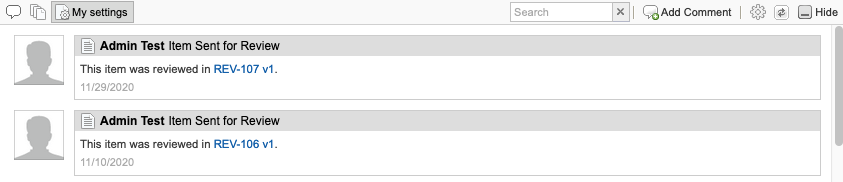
Use the three buttons in the top left corner of the Stream to:
Display active comments
Display all activities
Apply a custom filter to activities
Select the Settings (gear) icon in the top right corner to open the Activity Filter Settings window.
Keep the default settings or customize keywords, activity type, date range, or item type, then select Apply.
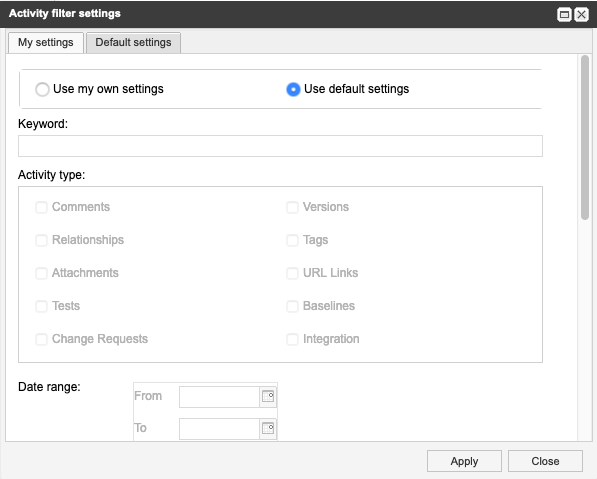
Your custom filters are saved across items.