Generate test cases
When Jama Connect Advisor is enabled, you can generate test cases based on one of your requirements. Jama Connect Advisor uses the requirement’s name and description, plus some additional context selections, to generate a list of ten test cases that can be created.
To generate test cases:
From the Jama Connect header, select PROJECTS > Project.
In the Explorer Tree, select the component or folder with the requirement you want to use to generate test cases.
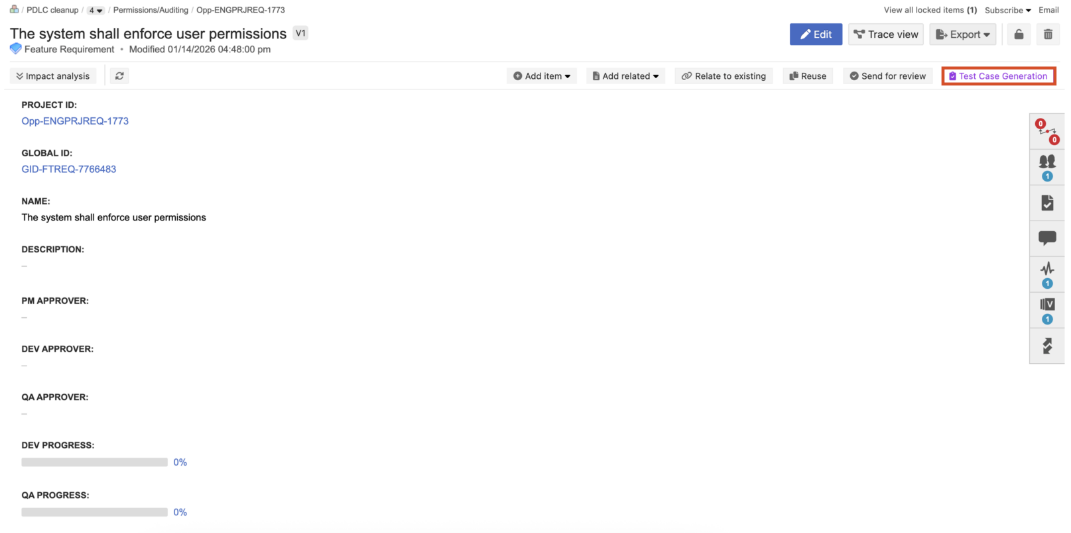
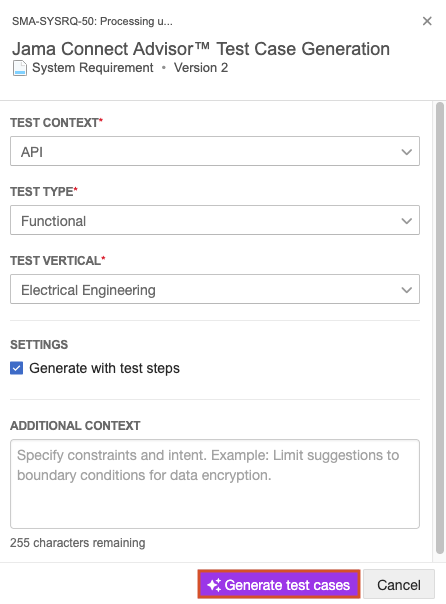
In Single Item View for that item, select Test Case Generation to open the Test Case Generation side panel.
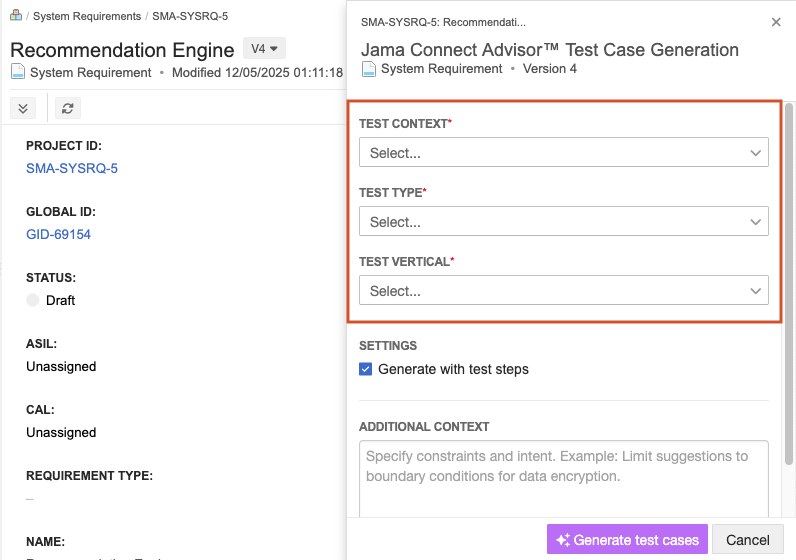
In the side panel, choose your Test Context, Test Type, and Test Vertical.
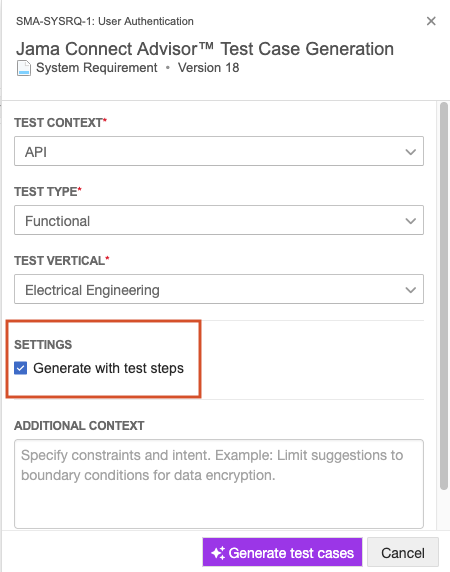
(Optional) Select Generate with test steps to include test steps.
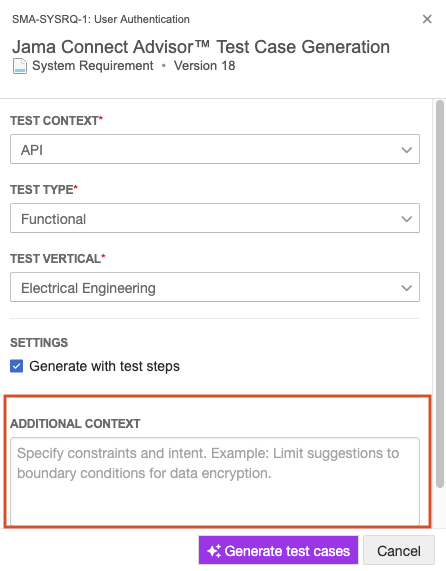
(Optional) Provide additional context for the AI model to consider when it generates test cases.
Select Generate test cases.
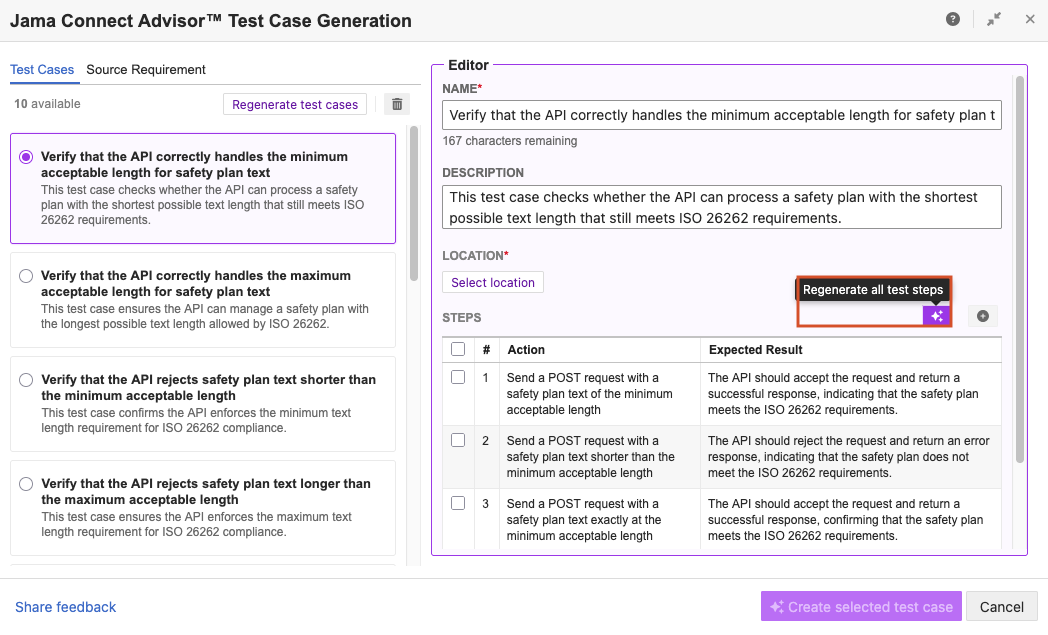
The Test Case Generation window displays the ten candidate test cases that were generated.
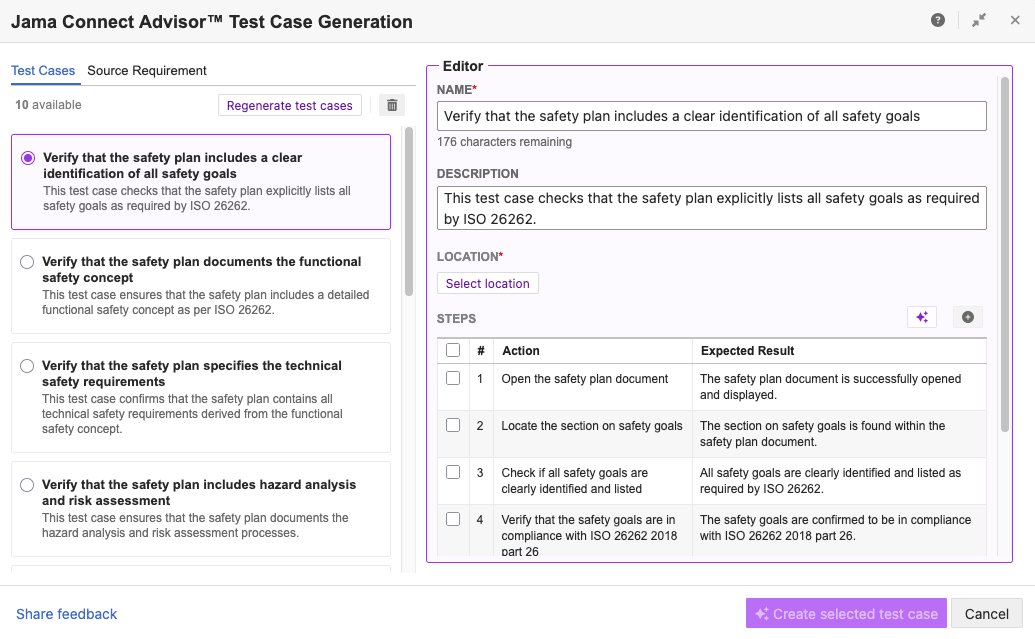
Choose a Location for saving your test case (must be a set of items that can be used as test cases).
(Optional) Rename the test case.
(Optional) Update the test case description.
Confirm that your test steps are correct, complete, and in order.
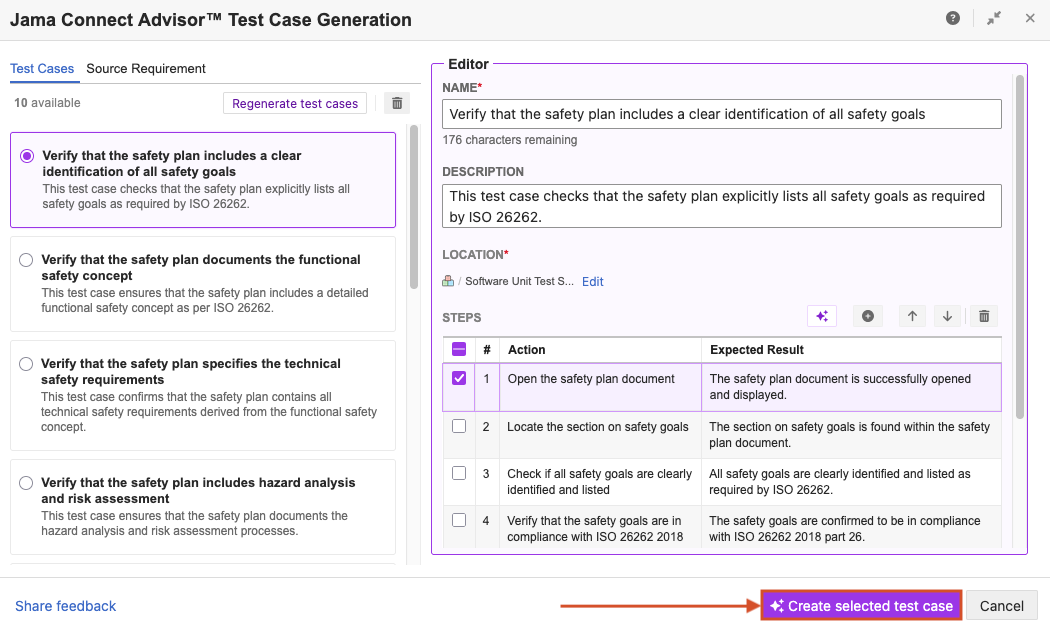
(Optional) Select test steps from the table and edit them inline, reorder them, or remove them, as needed.
(Optional) Add new test steps to the table.
Select Create selected test case.
(Optional) To regenerate more test cases:
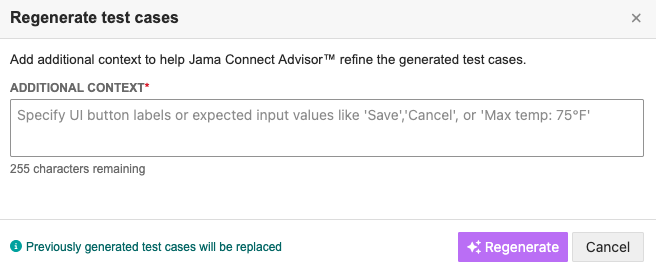
Select Regenerate test cases to provide new context to the AI model.
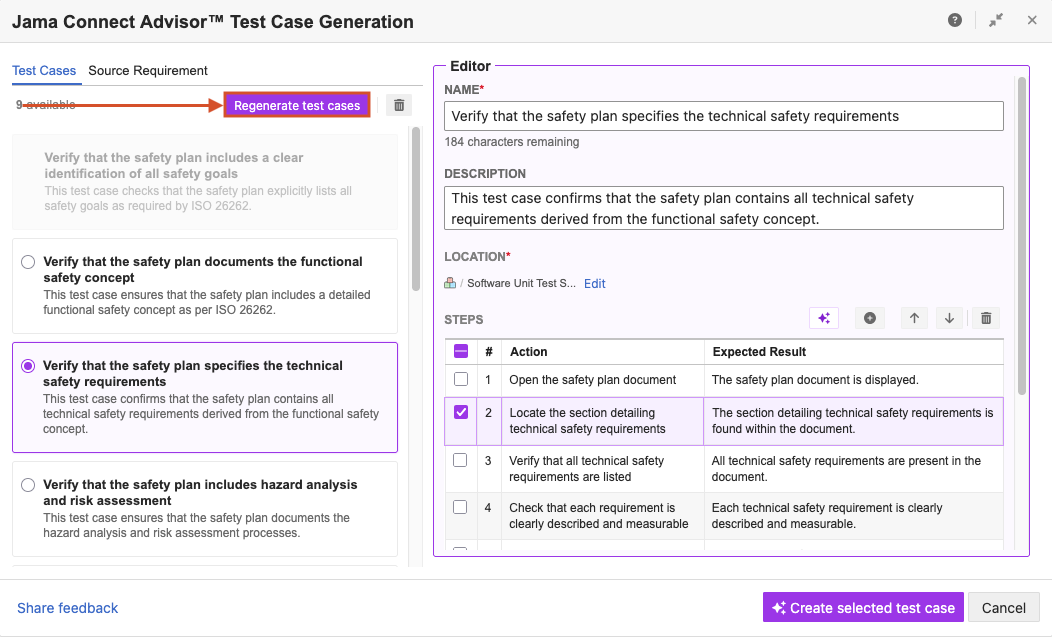
Select Regenerate.
Repeat steps 7-12.
(Optional) To regenerate test steps for a test case:
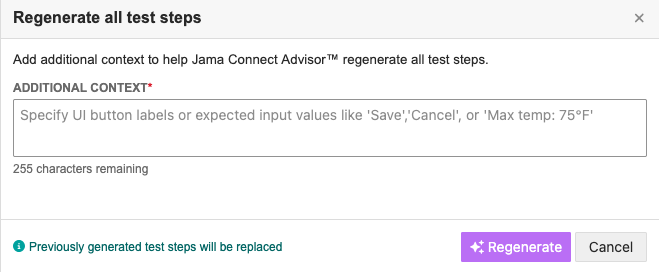
Select Regenerate all test steps to provide new context to the AI model.
Select Regenerate.
Repeat steps 7-12.
All test cases created by Jama Connect Advisor are automatically related back to the original requirement. Test cases created this way include a version comment to identify that they were created with Jama Connect Advisor.