Turn PDF documents into structured items
Import and parse PDF documents into structured, reviewable items and requirements. Extract and categorize content, review the suggested categories, and complete the import to create traceable items that retain the source layout.
Each imported requirement includes a reference to its location in the source PDF, helping you verify the imported content against the original document. This makes it easier to verify context, support reviews, track changes, and maintain confidence that the structured items accurately represent the original document.
To import PDF documents:
From the Jama Connect header, select PROJECTS > Project.
In the content header, select Import PDF > Import PDF.

Select the PDF document and the page range from the document, then select Upload.
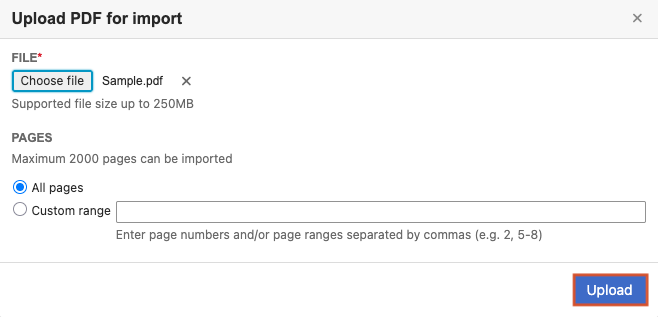
The PDF document is analyzed in the background. A message appears when it is ready for review.
In the content header, select Import PDF > View PDF imports.

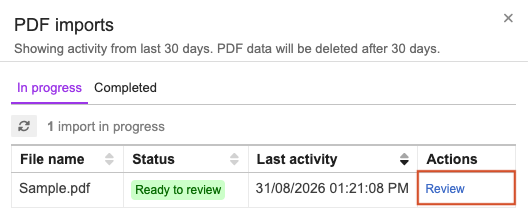
In the PDF imports side panel, select Review in the Actions column to preview the PDF contents.
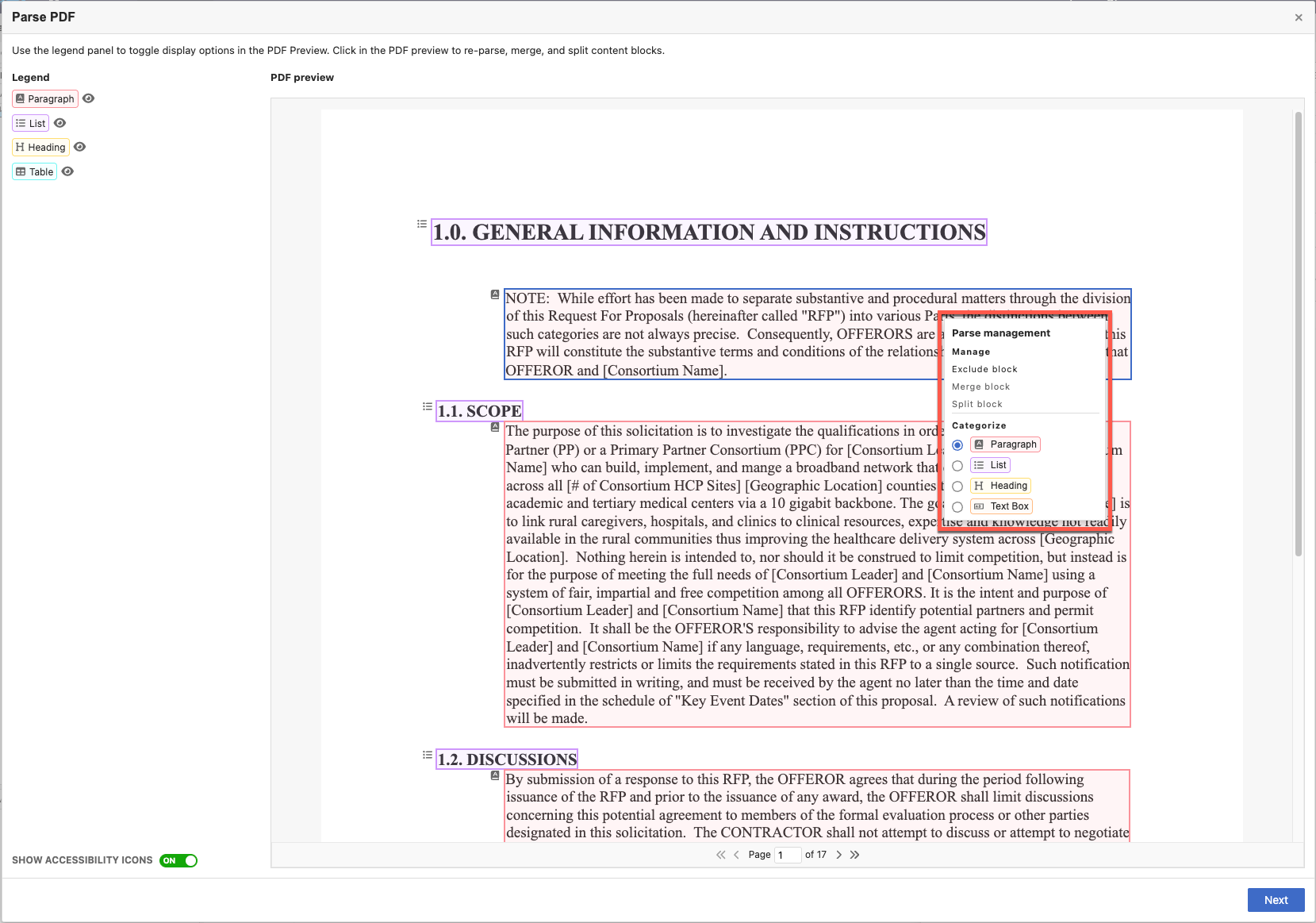
In the Parse PDF window, preview the preselected content mapping labels to make sure they are accurate.
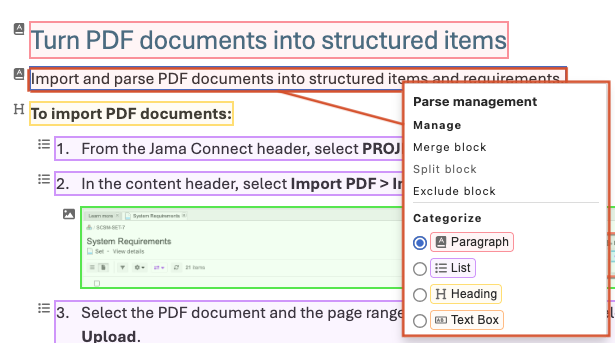
Review the detected content. If needed, right-click on a content block and select one of these actions:
Exclude block — Prevents the content block from being imported.
Merge block — Combines adjacent content blocks of the same type.
Split block — Divides a content block into separate blocks.
Categorize — Changes the assigned content type.
After you finish reviewing and adjusting the content blocks, select Next.
In the Import Preview window, review the items that will be created and select the Import destination.
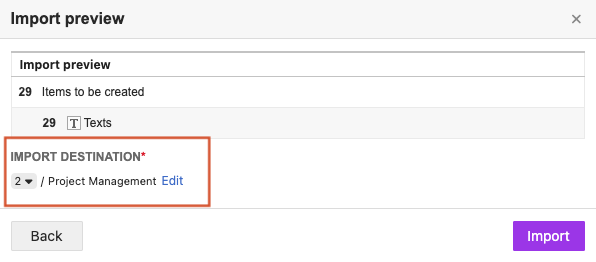
Select Import to create the items in the selected destination.
A message confirms when the import is complete.
Refresh the Explorer Tree to view the imported items.
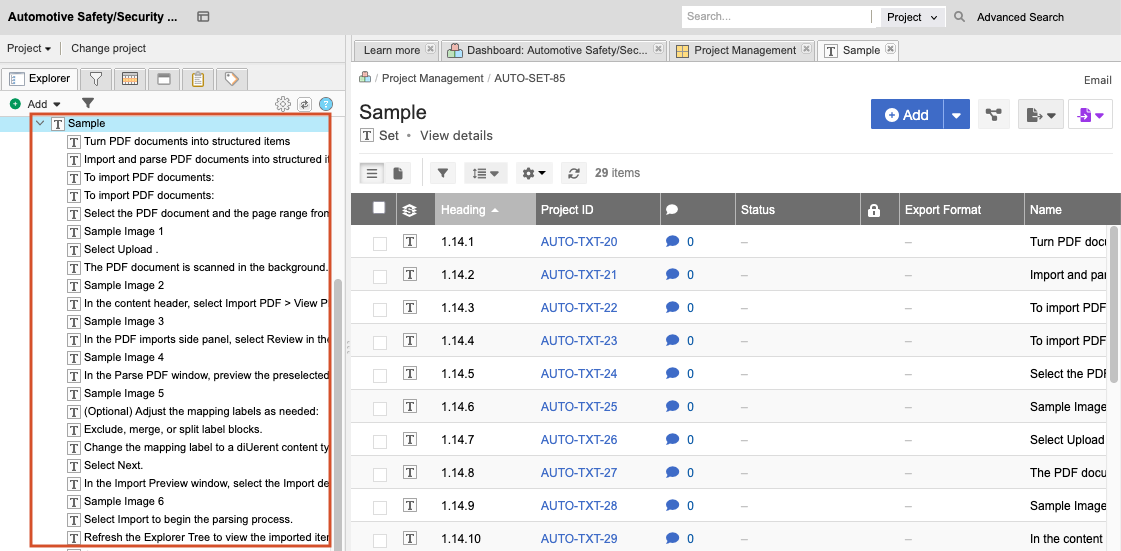
(Optional) View the status of PDF files by selecting Import PDF > View PDF imports.
In progress contains PDF documents that are in the process of importing.
Completed contains PDF documents that were parsed into items.
Ready to review contains PDF documents that are ready for review.
Failed contains PDF documents that couldn't be imported.